App Store Connect Help
App Store Connect Test a beta version Test an App Clip experience
Test an App Clip experience
App Clips allow you to make a small part of your app discoverable and quick to launch at the moment it’s needed. You can add up to three invocation URLs to launch different experiences within your App Clip. Testers running TestFlight for iOS, version 2.7 or later, and iOS 14 beta or later can test and provide feedback on all available App Clip experiences. Currently, testing of other invocation methods is not supported. Learn more about testing your App Clip’s launch experience.
Learn how to view tester feedback.
Learn how to manage App Clip experiences for testers with the App Store Connect API.
Required role: Account Holder, Admin, or App Manager. View role permissions.
Add an App Clip invocation
-
In Apps, select the app you want to view.
-
Click the TestFlight tab.
-
In the sidebar, below Builds, click the iOS platform.
-
In the Builds column, click the app icon or build string for the build that has the App Clip you'd like to test. The page opens with the Test Information tab selected.
-
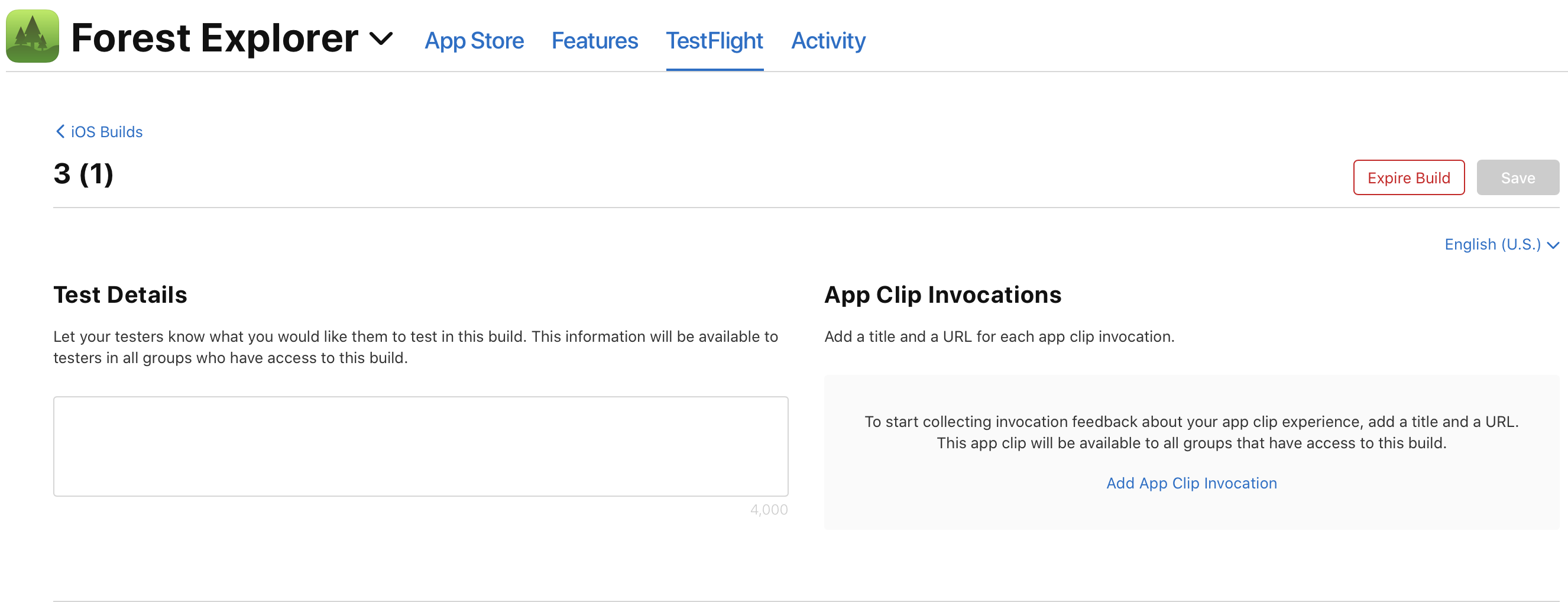
Under App Clip Invocations, click Add App Clip Invocation.
-
In the dialog that appears, enter the title and URL for your App Clip invocation.
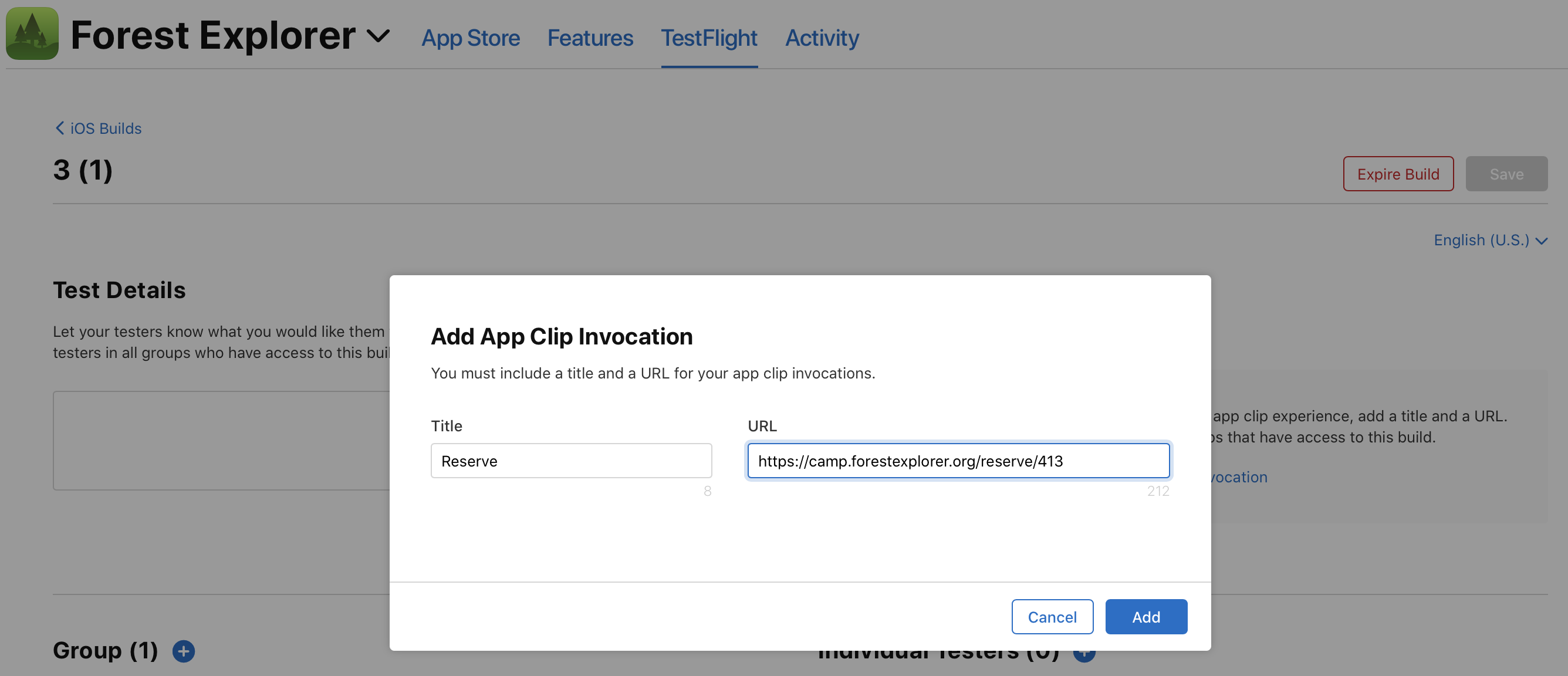
Note: You can localize the App Clip title for each URL based on the localizations you have added for your build in TestFlight, but the URL will be the same across localizations.
-
Click Add.
-
On the top right of the page, click Save.
Note: You can test an App Clip experience using TestFlight, provided that the App Clip is included in the build. To create defined experiences, incorporate up to three invocation URLs.
Delete an App Clip invocation
-
In Apps, select the app you want to view.
-
Click the TestFlight tab.
-
In the sidebar, under Builds, click the iOS platform.
-
In the Build column, click the app icon or build string for the build that has the App Clip invocation you'd like to delete. The page opens with Test Information tab selected.
-
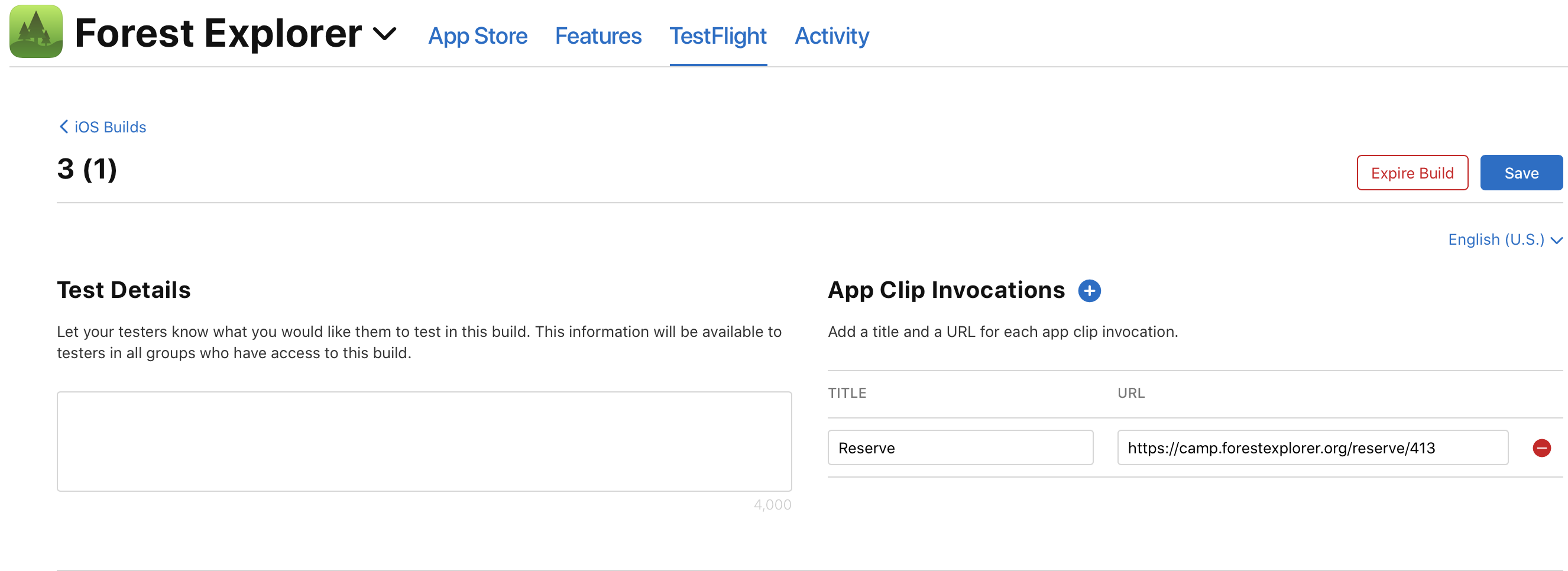
Under App Clip Invocations, hold the pointer over the App Clip invocation and click the delete button (–) that appears to the right of the URL.
-
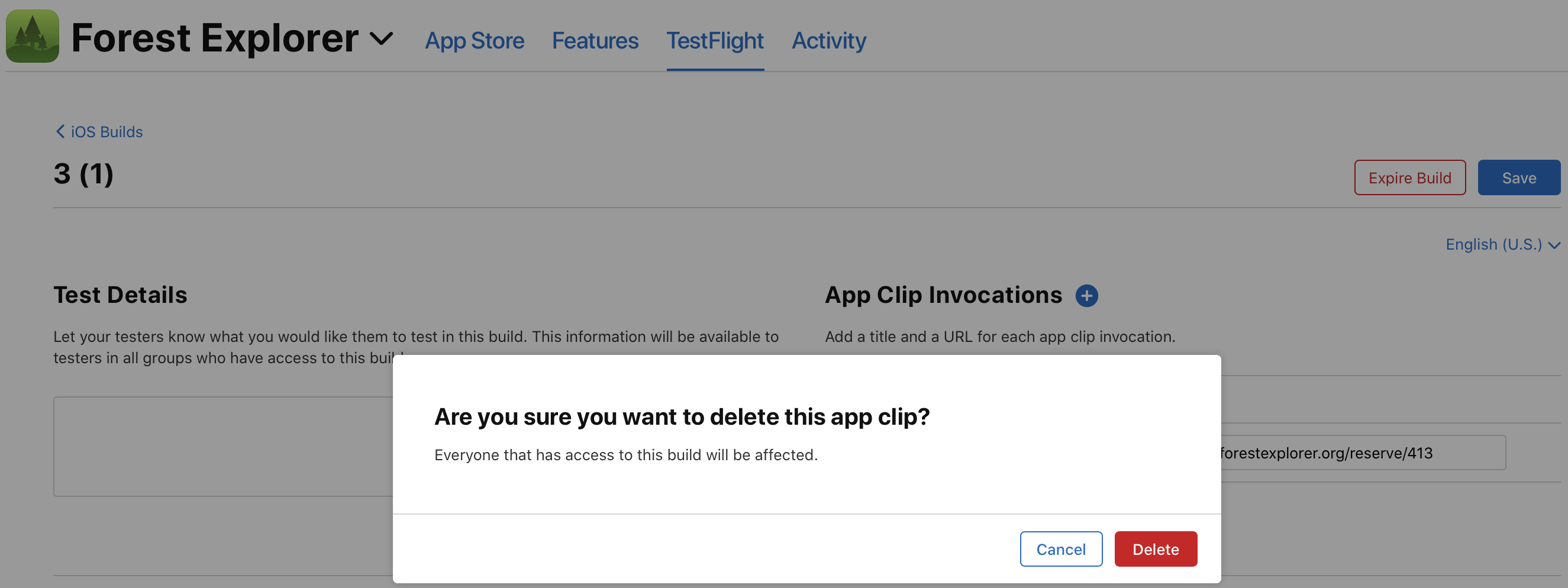
In the dialog that appears, click Delete.
-
On the top right of the page, click Save.