App Store Connect Help
App Store Connect Manage In-App Purchases Create consumable or non-consumable In-App Purchases
Create consumable or non-consumable In-App Purchases
To offer In-App Purchases, add In-App Purchase information in App Store Connect. You can enter the metadata when you create your In-App Purchase or enter it later.
Note: It may take up to 1 hour for changes you make to product metadata to appear in the sandbox environment.
Learn how to create In-App Purchases with the App Store Connect API.
Required role: You must have the Account Holder, Admin, App Manager, Developer, or Marketing role to add and edit In-App Purchases. View role permissions.
-
In Apps, select the app you want to view.
-
In the sidebar, under Monetization, click In-App Purchases.
-
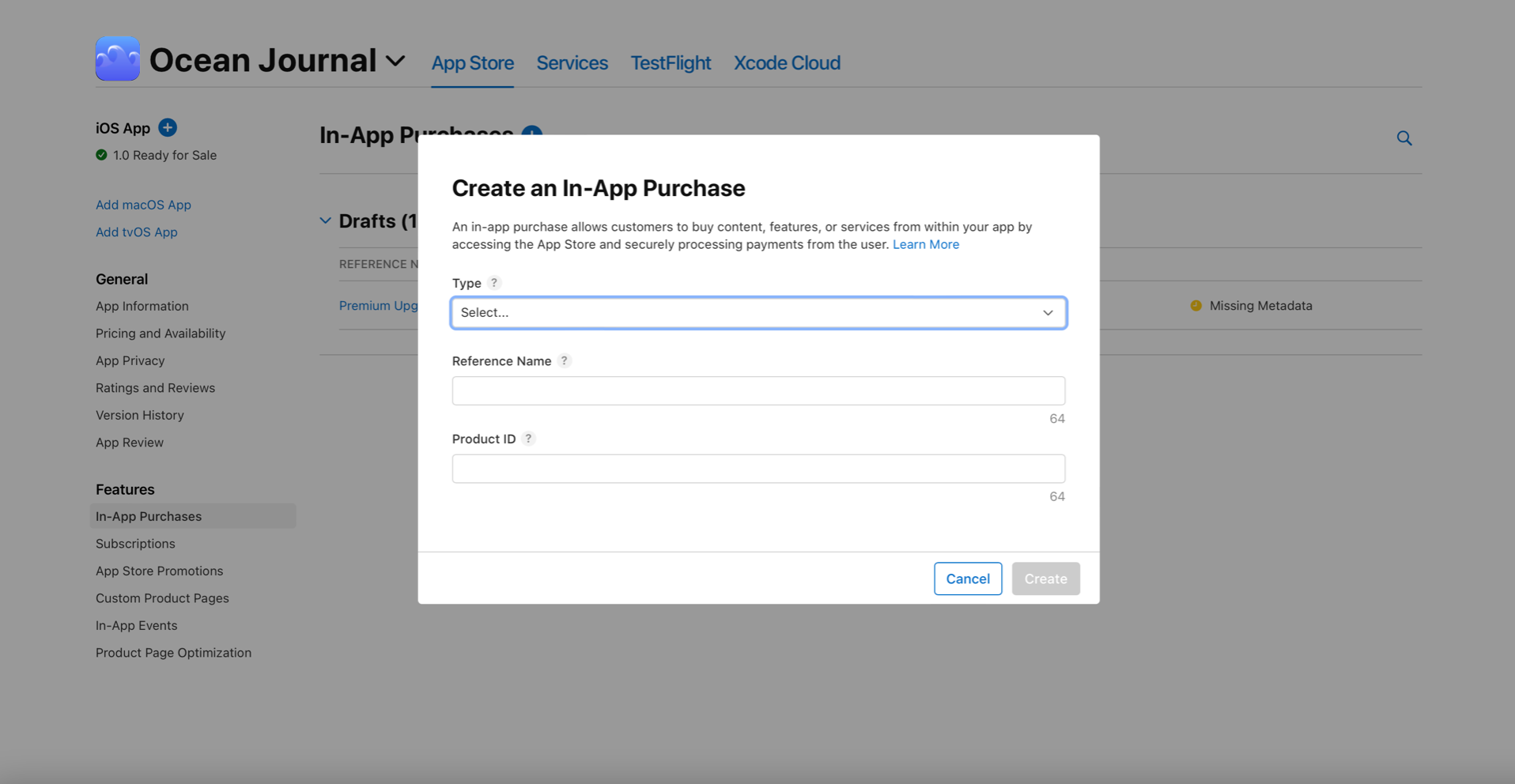
Click the add button (+).
-
Select Consumable or Non-Consumable. Learn about In-App Purchase types.
-
Add the reference name and product ID, then click Create.