App Store Connect Analytics Help
Campaign links
You can use Analytics in App Store Connect to generate campaign links for your marketing materials. Campaign links let you measure specific campaign performance and understand which marketing efforts are driving the most app downloads.
The campaigns feature leverages URL-based campaign parameters. Each link maps traffic back to a specific campaign so you can measure the performance of ads, social promotions, email, and more, in a privacy-friendly way.
When a user clicks a campaign link, they are redirected to your app's product page on the App Store. Analytics captures the impressions, product page views, downloads, usage, sales, and subscriptions tied to each campaign token. This helps you identify which campaigns deliver high-quality users and which drive lower engagement or retention. You can analyze results across a variety of dimensions, including by territory, device, or page type.
Each metric for your campaign will appear in the dashboard if the metric meets a minimum threshold of 5 in the date range selected. For example, you will see total downloads for your campaign if the campaign has at least 5 total downloads in the date range selected. If you aren’t seeing data for a particular metric, you can try to expand the date range to ensure that your metric meets the minimum threshold in your selected view.
If you don't see a Campaigns tab or add button:
The Campaigns feature becomes available only after your app has received analytics data. If your app is new or hasn't yet had any downloads, the add button (+) next to Campaigns may not appear. Continue checking after your app has been live and generating downloads for at least 24 hours. You can't generate a campaign link until your app has data, so plan to add campaign links as soon as your app's data becomes available, ideally in coordination with your launch marketing timeline. Data for a particular campaign will appear in the dashboard once it has generated first-time downloads from at least five individual users.
To export campaign data in bulk, use the Analytics reports in the App Store Analytics API. Data about individual campaigns is available only in the detailed reports, which have stricter privacy protections than the standard reports. Rows representing very small groups of users might be withheld or combined with other rows to prevent identifying individuals.
Create a campaign link
-
In Apps, select the app you want to view.
-
Click the Analytics tab.
-
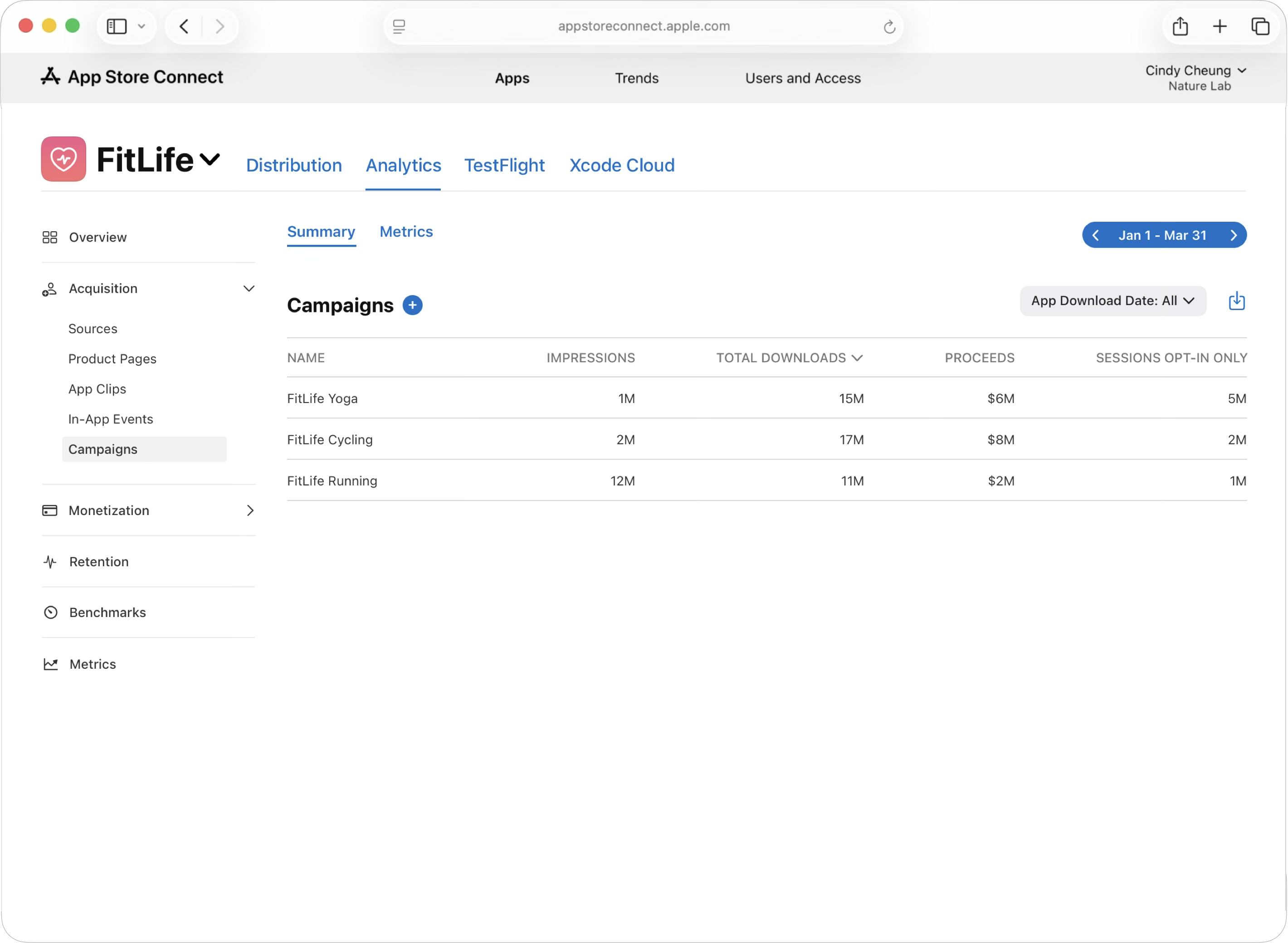
In the Acquisition section, click Campaigns.
-
Click the add button (+) next to Campaigns.
-
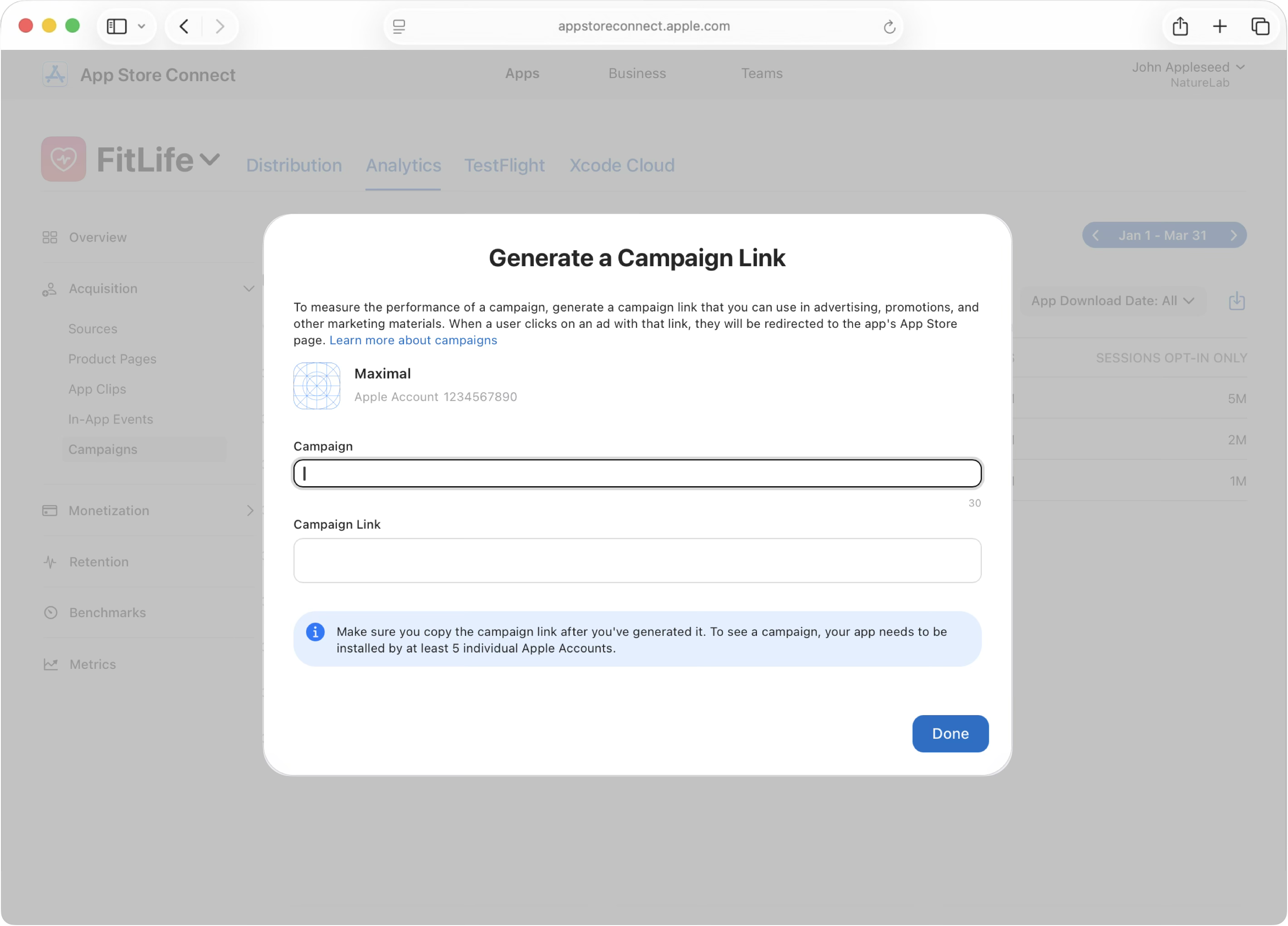
In the Campaign field, enter a campaign name. Your campaign name is your campaign token. You can use up to 30 alphanumeric characters and spaces, and the following punctuation marks and characters:
[ ] / \ - ~ + = <> : ; , . _ ‘ “ * & $ % # @ ? ! | { } ( )A space can’t be used as the first or last character in the campaign token.
-
Copy the campaign link to use in your marketing materials.
Example:
https://apps.apple.com/app/apple-store/id123456789?pt=123456&ct=test1234&mt=8
Use your campaign and provider tokens
When you generate a campaign link, you also receive tokens that you can place in your other campaigns.
-
Media type token (identified by the mt= parameter)
-
Campaign token (identified by the ct= parameter)
-
Provider token (identified by the pt= parameter)
Your provider token identifies your developer account, it isn't specific to a "provider" like an ad network. You generate it the first time you create a campaign link, and it stays the same across all your campaigns. You don't need a new provider token for each campaign. Reuse the same one, and change only your campaign token to distinguish between campaigns.
Smart App Banners
To promote your app using Smart App Banners in Safari, add your campaign token and provider token when implementing a Smart App Banner on your website. You must generate a campaign link in App Store Connect first to obtain your provider token. You can't create one manually.
StoreKit
You can use SKStoreProductViewController to present your app's product page from inside another app (for example, when cross-promoting one app from another) without sending the user to the App Store app. To attribute the downloads this generates to a specific campaign, include your campaign token and provider token as parameters when you load the product page, using SKStoreProductParameterCampaignToken and SKStoreProductParameterProviderToken. Analytics then attributes the results to your campaign the same way it would for a standard campaign link.
let parameters = [
	SKStoreProductParameterITunesItemIdentifier: 123456789,
	SKStoreProductParameterCampaignToken: "test1234",
	SKStoreProductParameterProviderToken: "123456"
]

let storeViewController = SKStoreProductViewController()
storeViewController.loadProduct(withParameters: parameters) { loaded, error in
	if loaded {
		present(storeViewController, animated: true)
	}
}
Visit the reference pages for the two parameter keys used above — SKStoreProductParameterCampaignToken and SKStoreProductParameterProviderToken — and the full class reference for SKStoreProductViewController, including loadProduct(withParameters:completionBlock:).
App Store for iMessage
To direct users to your app's product page on the App Store for iMessage, add the &app=messages parameter to your campaign link. iMessage and sticker pack extensions share their product page with the associated iOS app.
Example: https://apps.apple.com/us/app/apple-store/id439104108?pt=8668&ct=test123&mt=8&app=messages
Measure campaign performance
When a user downloads your app for the first time within 24 hours of using your campaign link or campaign token, they’re counted as a First-Time Download. If a user clicks more than one campaign link within a given timeframe, only the most recent link receives credit for subsequent sales.
-
In Apps, click the Analytics tab.
-
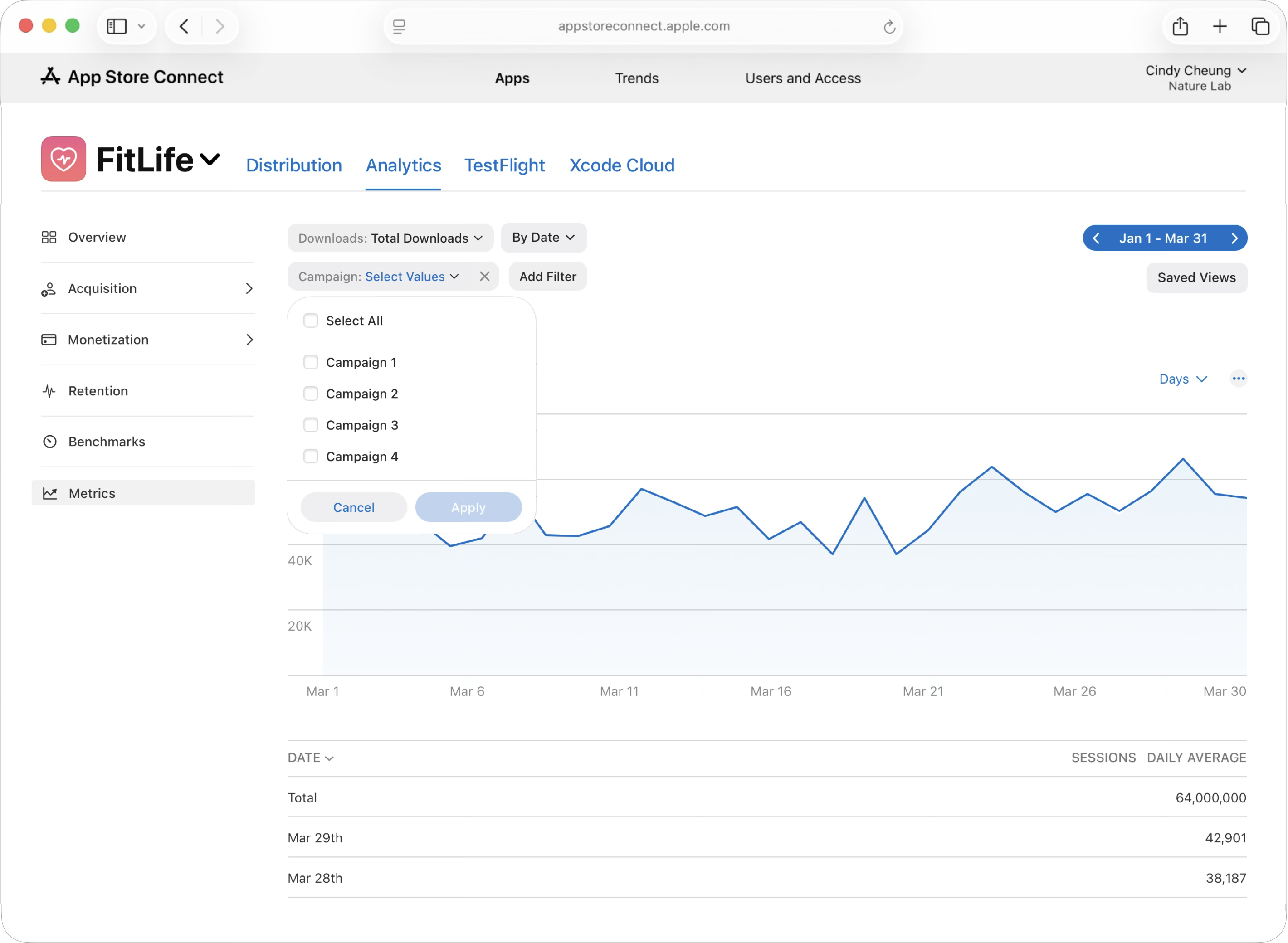
In the sidebar click Metrics.
-
Click Add Filter, then click Campaign. Use the drop-down menu to view data for a specific campaign.
-
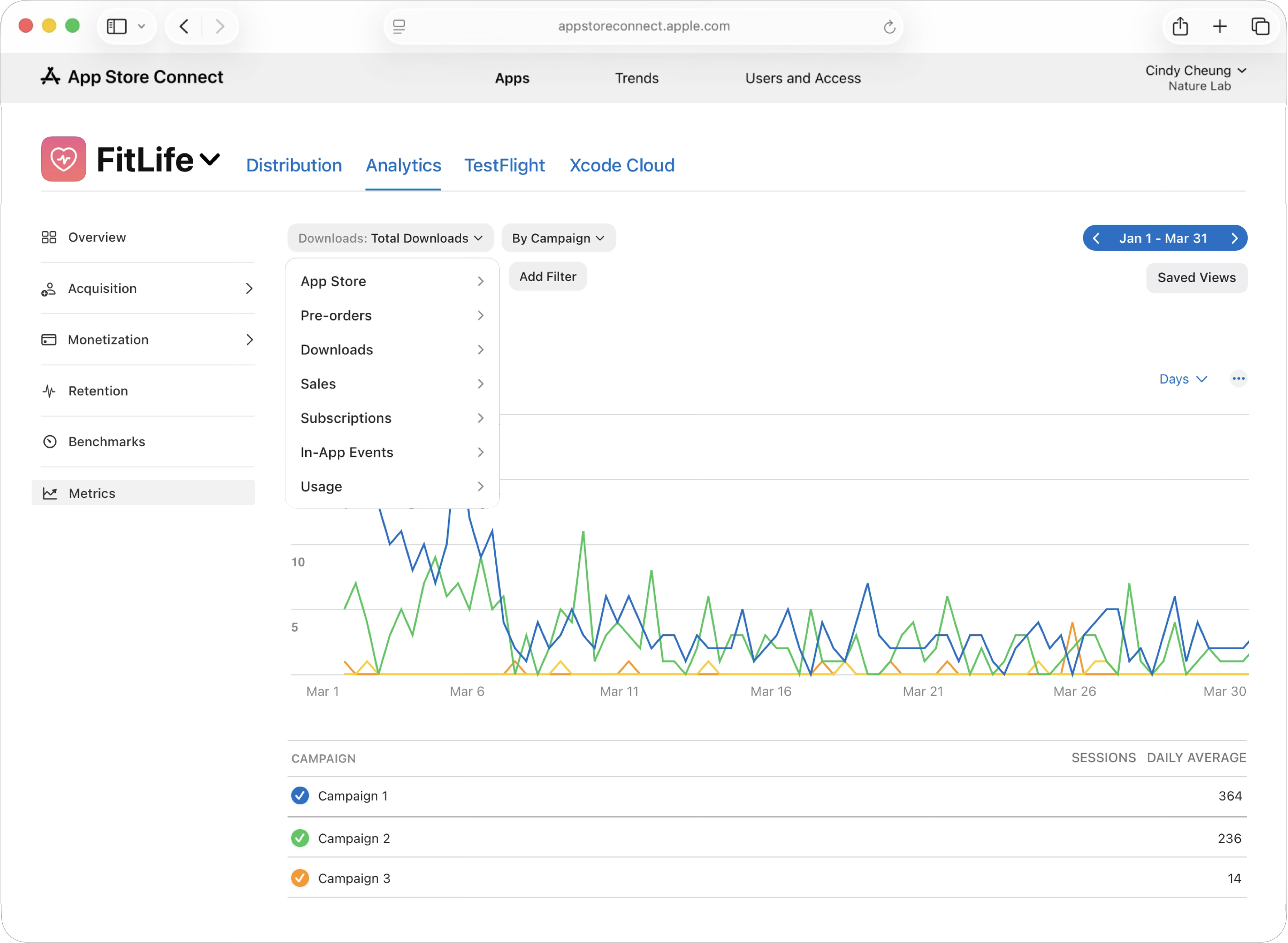
Use the dropdown menus at the top of the Analytics view to apply additional filters for more detailed insights into your campaign performance data.
Troubleshooting common issues
Why is my campaign not appearing in Analytics?
Campaigns appear in Analytics only after a minimum of 24 hours since their launch. Metrics that reach a minimum threshold of 5 will be visible in the dashboard. Ensure your campaign includes both a provider token and a campaign token.
Can I create a campaign link before my app has any data?
No. The Campaigns tab and add button appear only after your app has generated analytics data.
What's the difference between a campaign token and a provider token?
our campaign token (ct=) identifies an individual campaign, and you create a new one for each campaign you run. Your provider token (pt=) identifies your developer account and stays the same across all your campaigns.
Why is my exported detailed report missing rows or data?
Detailed reports apply privacy protections that can withhold or combine rows representing very small groups of users. This is expected behavior, not an error.
Why are users being redirected to a different App Store storefront than the one in my campaign link?
This is expected behavior. The App Store automatically redirects each user to their own local storefront when they click your campaign link, regardless of which storefront the link points to. If your link includes a region code — such as /us/ , that code doesn't restrict where the link works. Users outside that region are still redirected to their local storefront. Your link works worldwide without any changes needed.