

-
充分利用 iPhone Duo 上的多显示屏和场景
了解如何为 iPhone Duo 构建丰富的多窗口和多显示屏体验。探索如何处理动态窗口大小,以及如何在并排多任务处理中请求新场景。学习如何在 SwiftUI 和 UIKit 中观察铰链角度的变化以创建交互式效果。并了解如何使用场景配件同时在两块显示屏上呈现补充内容。
章节
- 0:00 - Introduction
- 0:49 - Respond to the hinge
- 1:18 - Drive a pitch bend with hinge angle
- 2:35 - Hinge data versus layout APIs
- 2:59 - Split view multitasking
- 3:38 - Support multiple scenes
- 4:22 - Scene accessories
- 5:00 - The camera capture accessory
- 5:34 - Build a teleprompter accessory
- 6:44 - Next steps
资源
相关视频
Tech Talks
-
搜索此视频…
iPhone Duo 是一款开创性的新设备, 既具备独特的功能, 又让人感觉亲切熟悉。 当用户使用您的应用时, 他们希望应用能在他们所使用的设备上如鱼得水。 本系列的其他视频将展示如何让您的应用 在不同设备上提供一流的用户体验。 我们将向您展示如何利用 iPhone Duo 的独特功能, 让您的应用真正变得神奇。 我是克里斯 · 多尼根 (Chris Donegan), UI 框架团队的工程经理。 我是亚历克斯 · 穆勒(Alex Muller ),系统体验工程师。 您将学习如何响应铰链 动作以实现惊人的交互和特效, 如何通过分屏多任务处理支持丰富的操作流程, 以及如何利用场景配件在多个显示 屏上展示用户界面。 让我们先从铰链开始。
打开 iPhone Duo 的瞬间令人惊叹。 请注意,壁纸会根据铰链的角度 变化产生缩放效果。
您的应用同样可以对铰链做出响应。 SwiftUI 提供了 新的 onHingeChange 修饰符, 而 UKit 则提供了 UIHingeInteraction。 两者都能让您获取铰链的高级状态信息:关闭、 部分打开和完全打开。 除了离散状态外, 它还会持续更新铰链的角度。
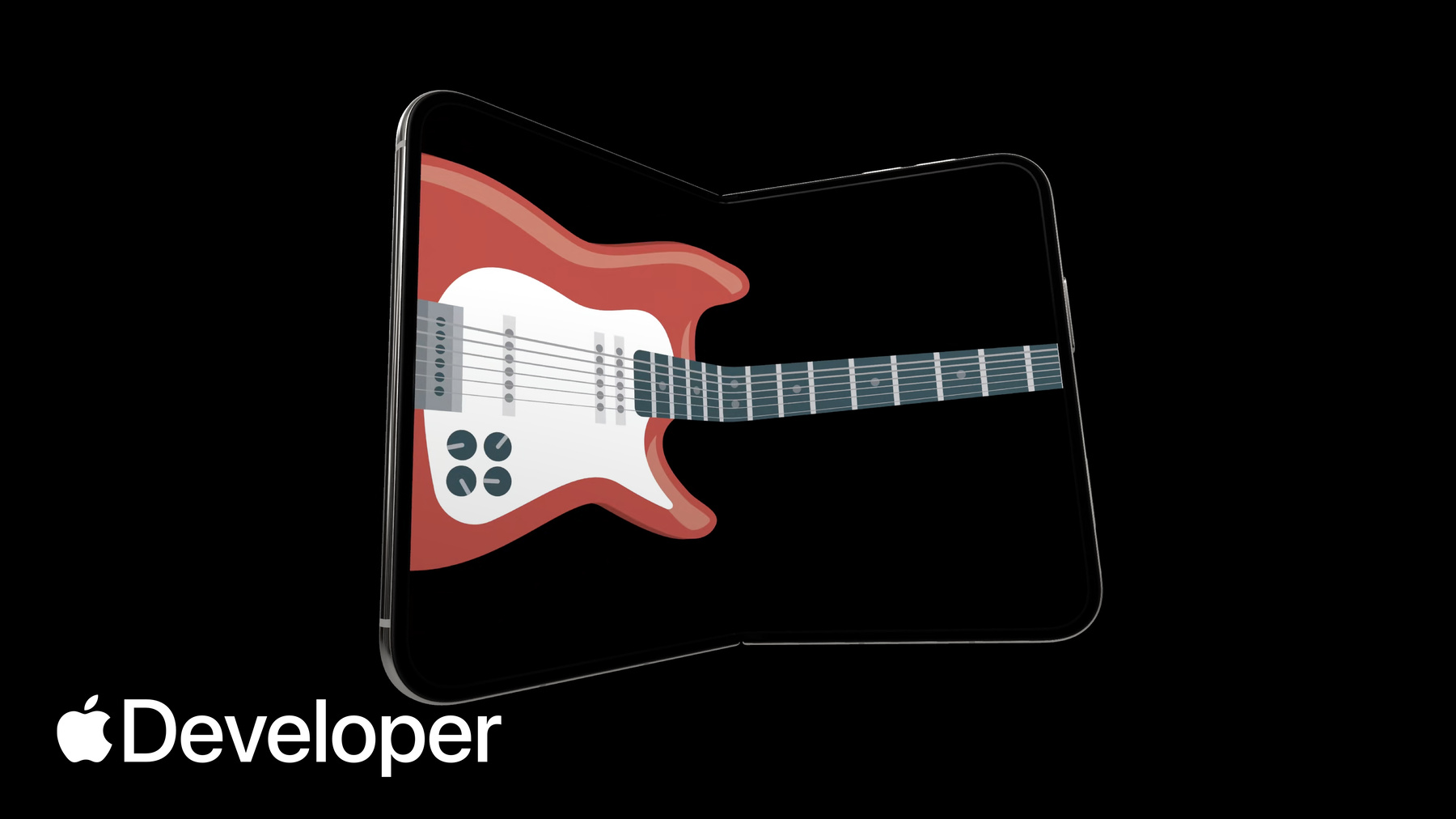
这是我一直在开发的一款应用。 它包含一把可演奏的吉他, 能让我的“空气吉他”演奏更上一层楼。
我有一个想法,就是利用 铰链来驱动音高弯曲,就像使用颤音杆一样。
这是我的 Instruments 视图。 它将音高弯曲值作为状态, 并在主体中传递给吉他视图。 我将通过在吉他视图中 添加 onHingeChange 修饰符来实现颤音功能。
该修饰符接受一个带有两个参数的闭包 :之前的铰链上下文和当前的铰链上下文。 在此情况下,我只需要当前的上下文。
接下来,我检查铰链是否为非空。 空值表示应用正 在没有铰链的设备上运行。 除了检查铰链的可用性外, 我还只关注 iPhone Duo 处于部分打开状态时的更新。
我会确保添加一个 else 条件, 以便在应用未 读取铰链角度时重置音高弯曲值。
最后,我将根据角度 计算音高弯曲值并更新状态。
借助 onHingeChange 修饰符, 我的吉他应用获得了更丰富的表现力。
铰链数据可实时监测, 非常适合驱动交互或特效。 布局方面,请使用 arrangement 和 region API。 请参阅《在 iPhone Duo 上 利用自适应布局展现风采》等文章。 我非常期待看到应用以创意方式利用铰链功能。 我认为这些功能非常强大。 绝对如此。 但 iPhone Duo 还有更多惊喜。
iPhone Duo 带来了 强大的多任务处理功能, 您的应用应做好应对准备。 所有应用都参与 iPhone Duo 的多任务处理,其中两个应用可以并排布局。 如果您的应用已经支持 iPad 上的尺寸 调整或 iPhone 镜像功能, 那么您已经有了一个很好的开端。 iPhone Duo 采用了全新的布局方式, 将视频和应用叠加在一起。 您的应用对这两种布局的处理方式完全相同。
系统让支持这些布局变得非常简单。 它提供了尺寸类和场景 几何等工具,供您在布局决策中使用。 请遵循《为 iPhone Duo 做好应用准备》中的最佳实践。
iPhone Duo 是 首款支持应用 UI 多实例 运行的 iPhone。 如果您的应用在 iPad 上支持此功能, 那么在 iPhone Duo 上同样支持。 有一点需要注意。 在 iPad 上,可以随时创建新窗口。 而在 iPhone Duo 的外屏上, 无法创建新窗口。 该行为仅限于内屏。
这种动态可用性是 iPhone Duo 特有的行为。 请确保在请求新场景时处理好错误。 请使用 UIWindowSceneActivationAction, 当无法创建新窗口时,它 会自动隐藏。如果您有兴趣首次 添加对多场景的支持, 请查阅相关文档。
分屏多任务并非在应用 中实现多场景的唯一方式。 场景配件可让您的应用 同时在多个显示屏上显示内容。
对于 iPhone 和 iPad, 场景配件 使您的应用能够将额外内容与应用的主界面配对, 例如将 iPhone 用作 外部显示屏上游戏的控制器。
系统会动态控制这些辅助组件的可用性。 它们默认处于启用状态,但可随时切换。
请使用观察追踪机制来响应 辅助组件可用性的变化, 以便您的应用在系统状态变化时保持完美同步。
作为 iPhone Duo 上相机 应用的新功能, CameraCaptureAccessory 允许您在外屏显示额外 UI, 同时应用的主 UI 仍保留在内屏。 这样,在为他人拍照或录制视频时, 您可以向其展示相关内容。 当您的应用在内屏全 屏显示且拥有一个活跃的相机会话时, 相机捕获配件即可用。
请在与相机 UI 相同的视图上注册您的配件。
请参阅《为 iPhone Duo 打造出色的相机体验》以了解 有关新相机功能的更多信息。
为了准备本次演讲, 我开发了一个相机应用供大家练习。 我想在外屏上显示一个提词器, 帮助我们背诵台词。
首先,我使用 sceneAccessory 修饰符添加了一个相机拍摄辅助组件。
通过在相机视图上添加该辅助组件, 提词器仅在相机视图可见时才会显示。 这就是我需要的全部代码。
现在,当相机视图显示在内屏时, 提词器视图就会显示在外屏上。 接下来,我想能够背诵台词进行练习, 因此有一个用于切换提词器的按钮会很有帮助。
我添加了一个工具栏, 其中包含一个按钮,该按钮会更新提词器 模型的启用状态,然后将该 状态传递给相机捕获辅助组件。
接下来,当配件不可用 时(例如设备合上时),我想禁用工具栏按钮。 在相机捕获配件中添加 onAvailabilityChange 修饰符, 即可获得用于监听此变化的回调。
现在,我们已经拥有了一款功能 齐全的排练应用,它充分利用了 两个显示屏,并且仅在需要时才显示提词器。
感谢你把这一切整合在一起。 这真的帮了我很多,让练习更轻松。 你确实需要它。 希望我们能激发你的创造力, 让你的应用在 iPhone Duo 上焕发魔力。 请更新你的应用以支持分屏多任务处理, 利用 Hinge API 构 建令人印象深刻的交互和特效, 并采用场景配件 让你的应用横跨多个显示屏。
至此,本次分享就到这里。 非常感谢大家的收看。
-
-
1:33 - Hold pitch bend as state
struct InstrumentView: View { /// Normalized bend, 0 is no bend, 1 is deepest bend @State private var pitchBend: Double = 0 var body: some View { GuitarView(pitchBend: pitchBend) } } -
1:44 - Add the onHingeChange modifier
struct InstrumentView: View { /// Normalized bend, 0 is no bend, 1 is deepest bend @State private var pitchBend: Double = 0 var body: some View { GuitarView(pitchBend: pitchBend) .onHingeChange { _, context in } } } -
1:57 - Check for a hinge and the partially open state
var body: some View { GuitarView(pitchBend: pitchBend) .onHingeChange { _, context in // A null hinge means the device doesn't have one if let hinge = context.hinge, hinge.status == .partiallyOpen { } } } -
2:10 - Reset the pitch bend
var body: some View { GuitarView(pitchBend: pitchBend) .onHingeChange { _, context in if let hinge = context.hinge, hinge.status == .partiallyOpen { } else { pitchBend = 0 } } } -
2:17 - Calculate the pitch bend from the hinge angle
struct InstrumentView: View { /// Normalized bend, 0 is no bend, 1 is deepest bend @State private var pitchBend: Double = 0 var body: some View { GuitarView(pitchBend: pitchBend) .onHingeChange { _, context in if let hinge = context.hinge, hinge.status == .partiallyOpen { pitchBend = calculatePitchBend(angle: hinge.angle) } else { pitchBend = 0 } } } private func calculatePitchBend(angle: Angle) -> Double { ... } } -
5:43 - Register a camera capture accessory
struct CameraRootView: View { @State private var model = TeleprompterModel() var body: some View { CameraView(model: model) .sceneAccessory { CameraCaptureAccessory { TeleprompterView(model: model) } } } } -
6:14 - Add a toolbar toggle
struct CameraRootView: View { @State private var model = TeleprompterModel() var body: some View { CameraView(model: model) .sceneAccessory { CameraCaptureAccessory(isEnabled: $model.isEnabled) { TeleprompterView(model: model) } } .toolbar { TeleprompterToggle(isEnabled: $model.isEnabled) } } } -
6:25 - Observe accessory availability
struct CameraRootView: View {
    @State private var model = TeleprompterModel()

    var body: some View {
        CameraView(model: model)
            .sceneAccessory {
                CameraCaptureAccessory(isEnabled: $model.isEnabled) {
                    TeleprompterView(model: model)
                }
                .onAvailabilityChange { newValue in
                    model.isAvailable = newValue
                }
            }
            .toolbar {
                TeleprompterToggle(isEnabled: $model.isEnabled)
                    .disabled(!model.isAvailable)
            }
    }
}
-
-
- 0:00 - Introduction
Chris Donegan, an engineering manager in UI Frameworks, and Alex Muller, a system experience engineer, introduce how to take advantage of the unique features of iPhone Duo: responding to the hinge, supporting split view multitasking, and using scene accessories across multiple displays.
- 0:49 - Respond to the hinge
SwiftUI provides a new onHingeChange modifier and UIKit provides UIHingeInteraction. Both report the high-level hinge status — closed, partially open, and fully open — as well as continuous updates of the hinge angle.
- 1:18 - Drive a pitch bend with hinge angle
A walkthrough of adding a whammy-bar pitch bend to a playable guitar app. The onHingeChange modifier takes a closure with the previous and current hinge context. Check for a non-null hinge, since null indicates a device without one, and filter for the partially open state — adding an else condition to reset the pitch bend when the angle isn't being read.
- 2:35 - Hinge data versus layout APIs
Hinge data is observed live and is ideal for driving interactions or effects. For layout, use the arrangement and region APIs covered in "Strike a pose with adaptive layouts on iPhone Duo" instead.
- 2:59 - Split view multitasking
All apps participate in multitasking on iPhone Duo, where two apps sit side by side. If your app already supports resizing on iPad or iPhone mirroring, you're off to a great start. iPhone Duo also introduces a new layout stacking video and apps together, which your app handles the same way, using tools like size classes and scene geometry.
- 3:38 - Support multiple scenes
iPhone Duo is the first iPhone to support multiple instances of your app's UI, and apps that support this on iPad will too. One difference: new windows can't be created on the outer display — that's reserved for the inner display. Handle errors when requesting new scenes, and use the UIWindowSceneActivation action, which hides itself automatically when new windows aren't available.
- 4:22 - Scene accessories
Scene accessories let your app show content on multiple displays at once, pairing additional content with your main UI — like using an iPhone as a controller for a game on an external display. The system dynamically controls their availability; they're enabled by default but can be toggled at any time, so respond to availability changes using observation tracking.
- 5:00 - The camera capture accessory
New for camera apps on iPhone Duo, CameraCaptureAccessory pairs additional UI on the outer display while your main UI stays on the inner display — useful for showing content to someone while photographing or recording them. It's available when your app is full screen on the inner display with an active camera session, and you register it on the same view as your camera UI.
- 5:34 - Build a teleprompter accessory
A walkthrough of adding a teleprompter on the outer display of a camera app. The SceneAccessory modifier adds a camera capture accessory to the camera view, so the teleprompter appears only when that view is visible. A toolbar button then toggles the enabled state of the teleprompter model, and the onAvailabilityChange modifier provides a callback to disable that button when the accessory isn't available, such as when the device is closed.
- 6:44 - Next steps
Update your app to support split view multitasking, use the Hinge API to build impressive interactions and effects, and adopt scene accessories so your app can span multiple displays.