

-
Level up with Apple game technologies
Explore the frameworks and technologies that can help you deliver great player experiences across the Apple ecosystem. Learn how to use frameworks like GameSave and MetalFX, and tools like Game Mode and Managed Background Assets, to boost performance, streamline launches, and create seamless gameplay on Apple devices.
This session was originally presented as part of the Meet with Apple activity “Press Start: Game development on Apple platforms.” Watch the full video for more insights and related sessions.资源
-
搜索此视频…
Hi, I’m Alexey and I lead the Game Technologies team here at Apple. Your players expect the best possible experience in your games. And today I want to talk about the frameworks, tools and resources that are available to help you achieve it.
In fact, the Apple Arcade system is really outstanding when it comes to gaming. The vast majority of players already have more than one device available, and they are carrying these devices around using them every day.
They don't need an additional dedicated device just for gaming, which means your game is already always in the hands of a lot of players.
As I mentioned previously, this is Apple's unified gaming platform, and game technologies that are available to you are also unified across Apple platforms, which means that in most cases, you don't need any special handling to support your game across Apple Cash system. Over the years, the OS and frameworks that help enable great gaming experience have continued to advance. As you can see, there are a lot of technologies available to you that can probably spend the whole day talking about.
I'm going to talk to take you through just a few of these here, like Background Assets System Experiences and Core Game Technologies, and my colleagues will later deep dive into areas like Metal or Game Center integration.
When you are bringing your game to Apple platforms, there are a few areas you can focus on that will make the biggest impact in terms of players wanting to return to your game over and over again.
Let's start with your game's first launch.
People who use Apple devices expect their apps to download pretty quickly and then immediately be ready to launch.
That means you want to make sure players can jump into gameplay as soon as installation finishes. But if the first time the player launches your game, they see something like this a message saying that they need to download more assets before they can have any fun. Well, that's probably not the first launch experience they have been looking for.
What you want, and more importantly, what they want, is to jump into the game as soon as possible, right when the installation finishes.
To do this, you want to make sure the essential content of your game is downloaded and ready at launch. An example. Initial installation could include some tutorial content that you want your players to get familiar with, so they can start playing right away. You can continue downloading the rest of the content in the background, and the player doesn't even need to know it's happening. It can look seamless to them, and the whole game will feel playable from the first launch on Apple platforms. You can achieve this using the Background Assets framework. It is designed to deliver a great first launch experience. You can configure how the system downloads your assets to the device, and prioritize the content that is required to start playing. Using Background Assets, you can offer optional downloadable content that players can unlock within the game, and you are able to update your game assets separately from the main game bundle. The manage Background Assets framework, introduced earlier this year, improves the API and simplifies the workflow for games on TestFlight or the App Store. You get up to 200GB of Apple hosting capacity, and the API is simple to use, including built in support for automatic out-of-band asset updates and system management.
Manage Background Assets are also tightly integrated into the same workflow you use for your game distribution on Apple platforms. You can use TestFlight to better test content changes in your game, and once these changes pass, App Store review delivered them to players.
Now that your players can enjoy your game straight away, you want to make sure your game takes most of the system.
Most of what system provides for gaming. Some examples of what it's important to players include latency for accessories like game controllers and headphones, achieving consistent frame rates and preserving battery life while gaming.
The first thing I recommend is to let the system know your app is a game, so that the system can enable Game Mode Game Mode optimize the system behavior to give your game even more resources. It reduces background activity so your game gets access to more CPU time to process complex tasks like rendering or physics simulation, and Game Mode also improves Bluetooth latency, making input and headphones more responsive on macOS and iOS. Game Mode is enabled when a player launches the game in full screen. The Game Mode banner will let player know that it's active.
It is simple to make sure your game enables Game Mode just add less, supports Game Mode key in your game's info.plist and set it to true.
Once enabled. Game Mode gives more system resources to your game to improve its performance, and it's important to manage them correctly to ensure your player's experience will be consistent across the whole gaming session.
To do that, you can ask the system to enable Sustained Execution Mode for your game.
When it is enabled, the system will set performance to the steady state right from the game launch. This allows you to quickly identify a level of quality and performance appropriate for the target device, and you can be confident your players will have a consistent experience.
It takes a couple of simple steps to enable Sustained Execution Mode. First, add the corresponding entitlement to your game. To do that, enable the capability in the sensing capabilities tools within Xcode.
Next, log in to your Apple Developer account and include this entitlement in the provisioning profile for your game. Now your game News will work together to deliver a smooth gaming experience. Last but not least is Low Power Mode, which has been tuned specifically for gaming so people can play even longer.
Starting with macOS Tahoe 26, if a game starts to use significant energy while the device is running on battery power, the system will send notification to the player and they'll have an option to enable low power mode. And not only that, with the new Game Overlay, players can toggle low Power Mode right inside it without even leaving the game.
To further improve experience for your players, you can set your game to respond and adapt to low power mode. The system provides you an API to detect when low power mode is active. Listen for NS processing for power state change notification when the low power mode state changes to enabled. You might, for example, optimize the quality settings to help extend playtime even longer.
Now the system is on your side. Let me tell you about some key game technologies that will level up your player's experience.
I mentioned earlier how truly unique the gaming experience is on Apple unified gaming platform. People are using multiple devices every day and always have at least one handy all the time.
Now they expect to be able to play their games across the devices they have. Your game can meet this expectation by synchronizing game state across all of your devices with cloud saves, so players can continue their progress at home, on the go, anytime, anywhere.
One of the ways you can accomplish this is by using the GameSave framework. It automatically syncs GameSave data across devices with the same iCloud account, and supports cases where the player is offline or signed out of a cloud.
The GameSave framework also provides you with default UI that you use to show progress, while saved data is being synchronized with iCloud.
Notify the player about potential saved data conflicts and provide options to resolve them, or send an alert when the player is signed out of iCloud. And if you want to customize the player experience, you can use the GameSave API to integrate with your game's UI and add custom logic.
It is easy to enable the GameSave framework in your game and only takes a couple of steps. First, at the iCloud entitlement to your game.
To do that, enable the capability in signing capabilities tools within Xcode. Select the iCloud documents checkbox in Game Project settings and add your iCloud container entitlement.
Next, login to your Apple Developer account and include the entitlement in the provisioning profile for your game. The GameSave framework is now ready to be used in your game. Let me show you how to start in the typical flow to use game framework. GameSave framework. First call Open Directory. GameSave will start fetching the user's saved data in the background while GameSave is sinking. You can check the status providing a window for user alert.
And finally, when sinking is finished, the save will be available from the URL.
Let's run these diagrams flow into the real code. In this talk, I will use Objective-C for simple code, because I know most of the game engines you use are written in C++, and this format will be easier for you to integrate into your existing code base. To start synchronization with iCloud, call Open Directory for container with your game's container identifier. While the GameSave framework performs a sync in the background, you can call the finish syncing, completion handler, and async logic to it. When cloud sync is done, you can check the state and handle any errors if needed.
Finally, use the directory state URL to access players Savedata. Your game is now ready to share saves across all the devices it supports.
Another important consideration when when you want to make your game shine across various devices is input. Apple platforms provide comprehensive support for peripheral input devices like keyboard, mouse, and game controllers.
You can allow players to enjoy your game in exactly the same way as they do on other platforms. However, in addition to that, we are especially unique in our support for high end games on touch platforms.
Apple's SDK provides a complete set of frameworks to support you, enabling all types of input in your game. Game Controller framework is an entry point to enable keyboard, mouse, and various game controllers input in your game, and Touch Controller framework is there to extend it to support touch input.
Let's start with the Game Controller framework.
The Game Controller framework's goal is making it easy to add support for all different kinds of efficient, low latency input across Apple platforms by abstracting input hardware through a common API. The Game Controller framework lets you lets you write your input code once without having to worry about how input may have been mapped or other differences among specific controllers, keyboards, or pointing devices.
Players can create system wide and per application Game Controller input mappings, which help make your games more customizable and accessible.
And you can build your UI to reflect the symbols and capabilities of the specific controller the player is holding. So whether your player is on team circle, square, triangle cross, or team Abxy, your game UI will look right for them.
The basics of the Game Controller framework is reacting to notifications about different kinds of GC device objects, connecting and disconnecting, and either pulling active devices for input state or setting up a value change handlers to be notified about input state changes.
When controller connect or disconnect from the system. GC controller objects are created and removed. The same applies to the GC keyboard and mouse objects. When keyboards or pointing devices connect or disconnect. All you need to do is add an observer to find out. For example, GC object connects or disconnects. Then it's up to you whether to set up change handlers to notify when the state changes, or pull the state of the controllers elsewhere. This is the same pattern you should use, whether it's a controller, a keyboard, or a pointing device.
There are so many great controllers to choose from form fitting controllers like Backbone Pro or Vagabond or Razer Kishi V3 Pro XL. Easily turn your iPhone or iPad into a handheld gaming console.
Game Controller framework also supports most of the modern and most popular controllers, like Xbox Controller or Sony DualSense controller. Also, players using latest macOS, iOS, and visionOS can now take advantage of easy pairing and easy switching for Sony controllers to allow even more diverse audience to access your games. Game Controller framework supports accessibility controllers like PlayStation and Xbox Adaptive Controller.
Last but not least, starting with visionOS 26, players on Vision Pro can now enjoy your game using Sony PlayStation VR2 Sense controllers. Stay tuned later. Stay tuned. Later today, Nathaniel will tell you more how to build a special game for visionOS to further expand variety of input methods your game supports. Touch Controller framework provides an easy way to add touch input support into your game.
Touch Controller frameworks comes with a wealth of button types and behaviors to support your game's common inputs. On top of that, each button can be customized to best fit the needs of your game, and the API Indirect Draws integrates directly with Metal to ensure the highest possible performance.
Touch Controller framework shares the same core principles I have explained before for the Game Controller framework. When Touch Controller is enabled in your game, it will appear as GC controller object and you will be able to pull it state or provide handlers to lead to listen for input updates.
It's very easy to integrate Touch Controller framework in your game. Here are some hints. How to start.
First initialize this descriptor, which contains properties like drawable size or Metal device. You can fill them yourself, or if you're using Mbtc view, you can simply call init. M2 method. Then you create an instance of PC Touch Controller and initialize it by calling init with descriptor method and providing descriptor you've just created. Now you can start adding controls. For example, here I'm creating the thumbstick control. I feel the descriptor and simply call a thumbstick with descriptor Matter to add it to my Touch Controller. Once you are done adding controls, call Connect method to connect the controller to your game and make it ready to be displayed. Finally, you can draw your controller on the screen by calling render using Render Command Encoder and use existing Metal command encoder. For example, the one you are encoding your UI rendering tool to allow Touch Controller framework to handle touch events, you can simply bypass touch events you are receiving from UIKit directly to the Touch Controller by calling Handle Touch. Begin at point method. And if you are already using Game Controller framework to support Game Controller input, you won't need to do any special handling. Touch Controller provides the same mechanism to pull information about the current state of the gamepad, like pulling the thumbstick position.
By enabling touch support for input in your game, you can easily provide players with options. Some will prefer to play using touch or just don't have a controller handy. They can enjoy your game any time they are ready.
Now your players can enjoy your game on all the devices they have and interact with it the way they prefer. It is a great time to make sure it meets their and your performance and quality expectations while playing.
Graphics is one of the most demanding parts of your game, and surely you want to render as much details as efficiently as you can.
Metal is Apple's low level graphics and compute API. It powers multiple generations of complex applications, including the latest games and props. Metal supports all the features you need to deliver the best in class graphics and performance in your game. It is very easy to start using Metal in your game. It shares the same concepts you are used to when it comes to the render backend implementation using other graphics graphics APIs. Metal provides you an efficient way to submit graphics, compute and machine learning work, scaling to thousands of draw calls and dispatches per frame.
You can enable all modern techniques supported by your game, like mesh shading and ray tracing, to take full advantage of hardware and provide your players with exceptional visual quality.
Stay tuned as my colleague Ridge will tell you more about Metal later today.
Is there ever growing complexity of graphical effects? It takes more effort to keep the frame time of your game in budget, and of course, you want to achieve that without sacrificing visual quality.
You can do that by integrating MetalFX Upscaling support into your game. MetalFX scales lower resolution image up to the target resolution in less time than it takes, rendered directly at the output resolution, and it supports both spatial and temporal upscaling so you can balance between visual quality and performance.
You can further boost your game's frame rate. When you integrate MetalFX Frame Interpolation in combination with MetalFX Upscaling, you will be able to get even more of a performance. Uplift Your game can use a Frame Interpolation to generate intermediate frames in much less time than it will take to render each frame from scratch. Pushing a game's performance even further.
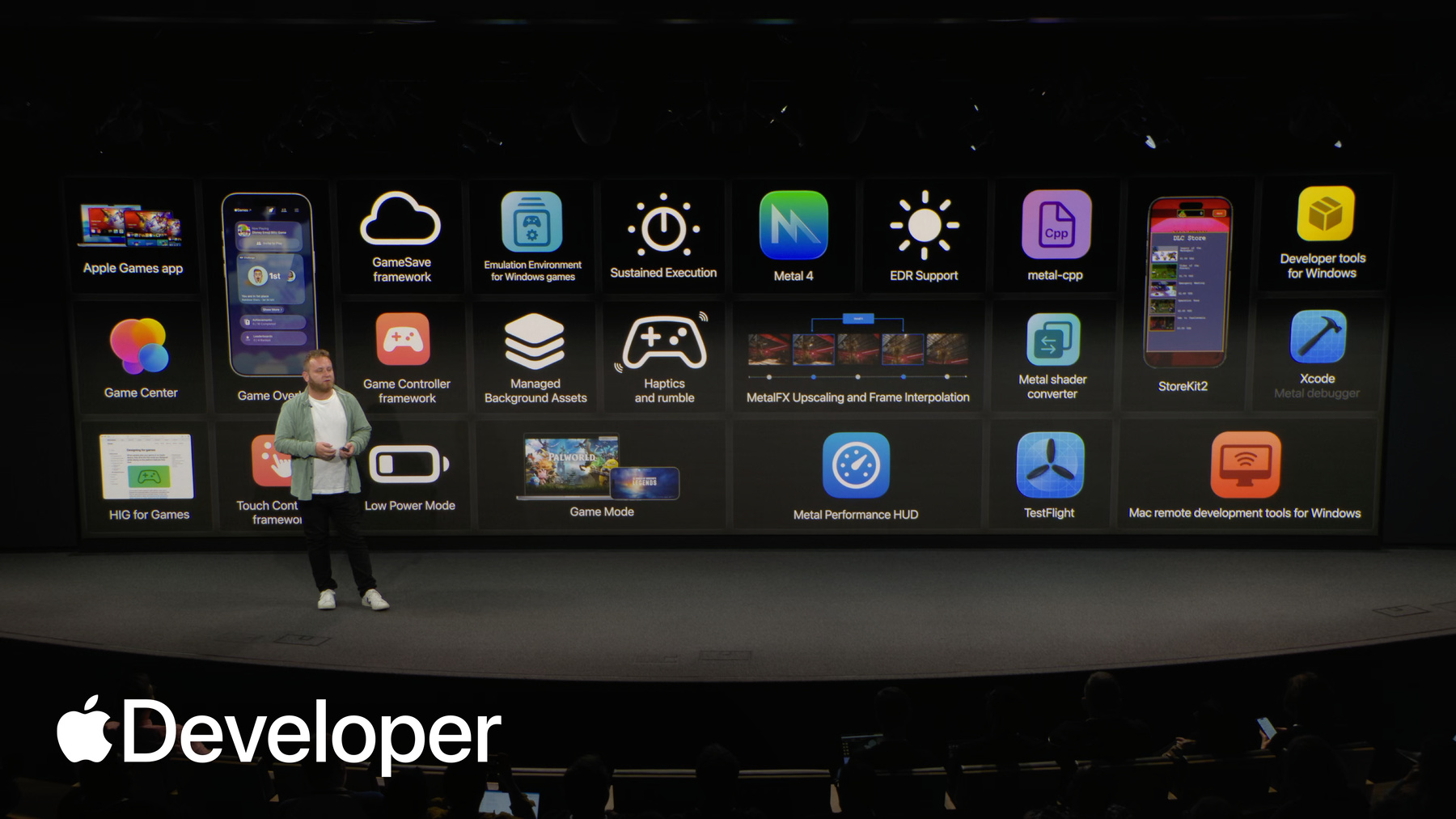
Before we wrap up, I wanted to get back to this slide. There are so many game technologies available on Apple platforms, and unfortunately, I wasn't able to tell you about all of them here, but I want to encourage you to look on some of those to level up players experience even further. Like HDR support in example, your game can take advantage of the gorgeous displays Apple devices have and give your game even more vivid look, or haptics and rumble support that give even more immersion for your players.
Visit developer.apple.com and start exploring about these technologies and all the rest available to you, including best practices and sample code to get started. And now over to Charlyn. Thank you.
-